Sunday, February 24, 2013

What is New in Entity Framework 5 ?

Introduction
  • Here I am explaining the newly released Entity Framework 5 New features and about the significant performance improvements of the Latest Entity Framework 5 

What is New in Entity Framework 5 ?

    1. Enum Support 
             - allows you to have enum properties in your entity classes (Click for More ...)

    2. Spatial Data Types
             - can now be exposed in your model using the DbGeography and DbGeometry
               data types (await for next post ...)

    3. Performance Enhancements

        i. LINQ to Entities Query Repeat Execution Time
           - repeat execution time of the same LINQ query has been reduced by around 600%
           - by using automatic compilation of LINQ to Entities queries

                    What is automatic compilation ?
                         - now every LINQ to Entities query that you execute automatically
                           gets compiled and placed in EF’s query cache
                         - each additional time you run the query, EF will find it in its query cache
                            and won’t have to go through the whole compilation process again

                    Behind the scene of Auto-Compiled Query Process in EF 5


Behind the scene of Auto-Compiled Query Process in EF 5

               Performance gain of EF 5 Hence Auto-Compiled Query Process

 Performance gain of EF 5 Hence Auto-Compiled Query Process

           
        ii. End-to-End Performance
                - performance tests that run a variety of operations designed to simulate the
                   typical usage a real-world application
                - then 67% performance increase over EF 4
                - just by upgrading the server to EF 5

"We aren’t done improving performance yet, but we’re excited about how much faster EF 5.0 is"
- The Microsoft Entity Framework Team

     4. Code First will now detect if you have LocalDb available for creating new databases
             - visual studio 2012 includes LocalDb

                     What is LocalDb ?
                        - Microsoft SQL Server 2012 Express LocalDB is an execution mode
                          of SQL Server Express targeted to program developers
                        - LocalDB installation copies a minimal set of files necessary to start the
                          SQL Server Database Engine


     5. Code First will add tables to existing database
            - if the target database doesn’t contain any of the tables from the model


What is New in Entity Framework Designer in Visual Studio 2012 ?


     1. DbContext code generation for new models
           - means that any new models created using the EF Designer will generate
              a derived DbContext and POCO classes by default
           - you can always revert to ObjectContext code generation if needed
           - existing models will not automatically change to DbContext code generation

     2. Multiple-diagrams per model
           - allows you to have several diagrams that visualize subsections of your overall model
           - shapes on the design surface can also have coloring applied

     3. Table-Valued functions
           - in an existing database can now be added to your model

     4. Batch import of Stored Procedures
          - allows multiple Stored Procedures to be added to the model during model creation


How to Install Entity Framework 5 for Visual Studio 2012 Solution ?


Step 1. Open Visual Studio 2012 with Your project

Step 2. Right Click Your Solution and then Click Properties

Click Properties


Step 3. Double check whether Your Target Framework is 4.5

Double check whether Your Target Framework is 4.5


Step 4. Right Click Your Solution and then Click Manage NuGet Packages... 

Manage NuGet Packages


Step 5. Click Online Tab and Then Type Entity Framework 5 on Search Box
            After that Select EntityFramework and Click Install 

Click Install

Step 6. Click I Accept

Click I Accept


Step 7. Finally, Close the Manage NuGet Packages Screen


That's It.You're Done.

Entity Framework 5


Conclusion
  • You saw that how much of performance gain could be achieved by just updating the Application Server for Entity Framework 5 Out of the box without doing anything to your existing Linq to Entity Queries
  • It's Simply Amazing
  • So Try to use EF 5 with your projects and Enjoy it

References
Improve Performance with Entity Framework 5

I hope this helps to You.Comments and feedback greatly appreciated.

If you feel it was a good article,Give me a +1.Thank You.


You Might Also Like

How to Improve Performance of Entity Framework Query ?

Sunday, February 10, 2013

How to use Twitter Bootstrap with Asp.Net MVC 3 ?

What is Twitter Bootstrap (TB) ?
  • TB is a Free (open source) collection of tools for creating web applications
  • It contains HTML and CSS-based design templates for typography, forms, buttons, charts, navigation and other interface components
  • As well as optional JavaScript extensions
  • TB has supported for HTML5 and CSS 3
  • It is compatible with all major browsers
  • It also supports Responsive Design
           - This means the graphic design of web pages adjusts dynamically, taking into account
              the characteristics of the device used (PC, tablet, mobile phone)


Twitter Bootstrap


How to Download Twitter Bootstrap ?


Step 1 :

Download Twitter Bootstrap

Step 2 : 
  • After unzip the content,You will have below mentioned folders
After unzip the content

  • CSS folder's content is as below

CSS folder's content

  • IMG folder's content is as below

IMG folder's content

  • JS folder's content is as below

JS folder's content


How to create Asp.Net MVC 3 project using Visual Studio 2010 ?

Step 1 :  Click,  File ==> New Project

New Project


Step 2 :  Select, Internet Application Template

Select, Internet Application Template


Step 3 :  MVC 3 Internet Application Template generated Solution Explore is as below

Complete project


How to add Twitter Bootstrap UI Framework for Asp.Net MVC 3 project ?

css and img :
  • Create a folder named "bootstrap" under the Content folder
  • Create 2 sub-folders named "css" and "img" under that
  • Add the .css files into css folder and .png files into img folder

Note: The framework assumes that the .png images are located under a folder
           named "img" under the parent folder of the folder in which the .css files are located  

scripts :
  • Create a folder named "bootstrap" under the Scripts folder
  • Add the bootstrap javaScript files into it

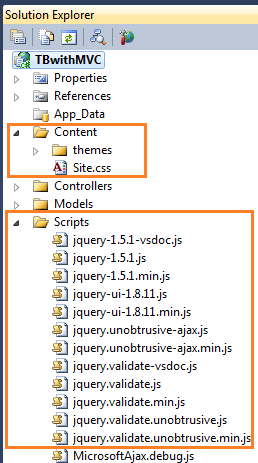
After that solution explore looks like below

Complete project


Let's try to add Bootstrap effects into our Asp.net MVC project

How to Add the Bootstrap CSS ?
  • Open the _Layout.cshtml page
  • Add the following 2 lines in the head tag at the end of its existing content
  • You don't need to remove any of its existing content   
  • You need to make sure that bootstrap-responsive.min.css appears after the bootstrap.min.css 

<head>
<link href="@Url.Content("~/Content/bootstrap/css/bootstrap.min.css")"
      rel="stylesheet" type="text/css" />
<link href="@Url.Content("~/Content/bootstrap/css/bootstrap-responsive.min.css")"
      rel="stylesheet" type="text/css" />
</head>


How to Add Bootstrap JavaScript ?
  • It is a good practice to add the JavaScript files at the end of the page content
  • Add the following line at the end of the _Layout.cshtml file before ending the body tag

<script src="@Url.Content("~/Scripts/bootstrap/bootstrap.min.js")"
        type="text/javascript"></script>


Let's add some Twitter Bootstrap css styles for our Asp.Net MVC UIs

Site.css
  • Open the Site.css file
  • Look for the "header h1, #header h1" styled item
  • Replace it with the following code block   

header h1, #header h1
{
    font-weight: normal;
    padding: 5px 0;
    margin: 0;
    color: #5c87b2;
    border: none;
    line-height: 2em;
    font-size: 20px !important;
    text-shadow: 1px 1px 1px #111;
}

  • Look for #logindisplay, #logindisplay a:link, #logindisplay a:visited and #logindisplay a:hover styled items
  • Change the color property to #555 instead of white
  • Replace it with following code block   

#logindisplay
{
    font-size: 1.1em;
    display: block;
    text-align: right;
    margin: 10px;
    color: #555;
}

#logindisplay a:link
{
    color: #555;
    text-decoration: underline;
}

#logindisplay a:visited
{
    color: #555;
    text-decoration: underline;
}

#logindisplay a:hover
{
    color: #555;
    text-decoration: none;
}

Let's Modify Body 
  • Open _Layout.cshtml page
  • Replace it with following code block  

_Layout.cshtml (complete code)

<!DOCTYPE html>
<html>
<head>
<meta charset="utf-8" />
<title>@ViewBag.Title</title>
<link href="@Url.Content("~/Content/Site.css")" rel="stylesheet"
      type="text/css" />
<link href="@Url.Content("~/Content/bootstrap/css/bootstrap.min.css")"
      rel="stylesheet" type="text/css" />
<link href="@Url.Content("~/Content/bootstrap/css/bootstrap-responsive.min.css")"
      rel="stylesheet" type="text/css" />
</head>

<body>
    <div class="container-fluid">
        <div id="header" class="row-fluid">
            <div id="title">
                <h1>
                    My MVC Application</h1>
            </div>
            <div id="logindisplay">
                @Html.Partial("_LogOnPartial")
            </div>
        </div>
        <div id="" class="row-fluid">
         <div class="navbar">
           <div class="navbar-inner">
             <div class="container-fluid">
               <div class="nav-collapse">
                 <ul class="nav">
                   <li class="@(ViewBag.Active == "Home" ? "active" : "")">
                       @Html.ActionLink("Home", "Index", "Home")
                    </li>
                    <li class="divider-vertical"></li>
                    <li class="@(ViewBag.Active == "About" ? "active" : "")">
                       @Html.ActionLink("About", "About", "Home")
                    </li>
                  </ul>
               </div>
             </div>
          </div>
         </div>
        </div>
      <div id="" class="row-fluid">
         @RenderBody()
      </div>
      <div id="footer" class="row-fluid">
      </div>
    </div>

    <script src="//ajax.googleapis.com/ajax/libs/jquery/1.9.0/jquery.min.js">
           </script>
    <script src="@Url.Content("~/Scripts/bootstrap/bootstrap.min.js")"
            type="text/javascript"></script>
</body>
</html>


Let's Modify Home Page
  • Open Index.cshtml page
  • Replace it with following code block 

Index.cshtml (complete code)

@{
    ViewBag.Title = "Home Page";
    ViewBag.Active = "Home";
}
<div class="hero-unit">
    <h2>@ViewBag.Message</h2>
    <p>
        This is a template to demonstrate the way to beautify the default
        MVC3 template using Twitter Bootstrap website. It is pretty
        simple and easy.
    </p>
    <p>
        <a href="http://asp.net/mvc" class="btn btn-primary btn-large"
           style="color: White;">
         To learn more about ASP.NET MVC visit &raquo;</a>
    </p>
</div>


Let's Modify About Page
  • Open About.cshtml page
  • Replace it with following code block 

About.cshtml (complete code)

@{
    ViewBag.Title = "About Us";
    ViewBag.Active = "About";
}
<div class="row-fluid">
    <div class="span4">
        <h2>
            About 1</h2>
        <p>
            Your About 1 details.Your About 1 details.Your About 1 details.
            Your About 1 details.Your About 1 details.Your About 1 details.
            Your About 1 details.Your About 1 details.Your About 1 details.
        </p>
        <p>
            <a class="btn" href="#">View details &raquo;</a></p>
    </div>
    <div class="span4">
        <h2>
            About 2</h2>
        <p>
            Your About 2 details.Your About 2 details.Your About 2 details.
            Your About 2 details.Your About 2 details.Your About 2 details.
            Your About 2 details.Your About 2 details.Your About 2 details.
        </p>
        <p>
            <a class="btn" href="#">View details &raquo;</a></p>
    </div>
    <div class="span4">
        <h2>
            About 3</h2>
        <p>
            Your About 3 details.Your About 3 details.Your About 3 details.
            Your About 3 details.Your About 3 details.Your About 3 details.
            Your About 3 details.Your About 3 details.Your About 3 details.
        <p>
            <a class="btn" href="#">View details &raquo;</a></p>
    </div>
</div>


That's it.You're done.

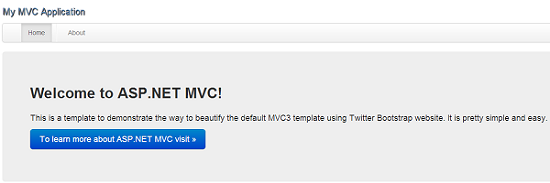
  • Now the Asp.net MVC 3 project with Twitter Bootstrap Template should look like below

Home page (portion)

Home page


About page (portion)

About page


Do you need to Download This Sample Project ?


Do you need to dive deep ends of  Twitter Bootstrap ?


Conclusion
  • Bootstrap is a Toolkit from Twitter designed to kick-start development of web-apps and sites
  • You can design highly professional and more sophisticated web sites with minimum effort by using Bootstrap
  • It is Tested and supported in the major modern browsers, such as the Latest versions of Safari, Google Chrome, Firefox 5+, and Internet Explorer 7+
  • With Bootstrap 2.0 and later, Mobile browsers are also supported
  • So Try to use TB with your web projects and Enjoy it 


I hope this helps to You.Comments and feedback greatly appreciated.

If you feel it was a good article,Give me a +1.Thank You.


Happy Coding.

May Be Useful for You

How to Improve jQuery Selector Performance ?
How to Enable jQuery Intellisense in Visual Studio 2010 ?